 Long ChatGPT Conversations
How to Navigate Long ChatGPT Conversations
Scrolling a 300-message ChatGPT thread is slow and imprecise. Here is a repeatable workflow for finding, revisiting and saving any part of a long chat.
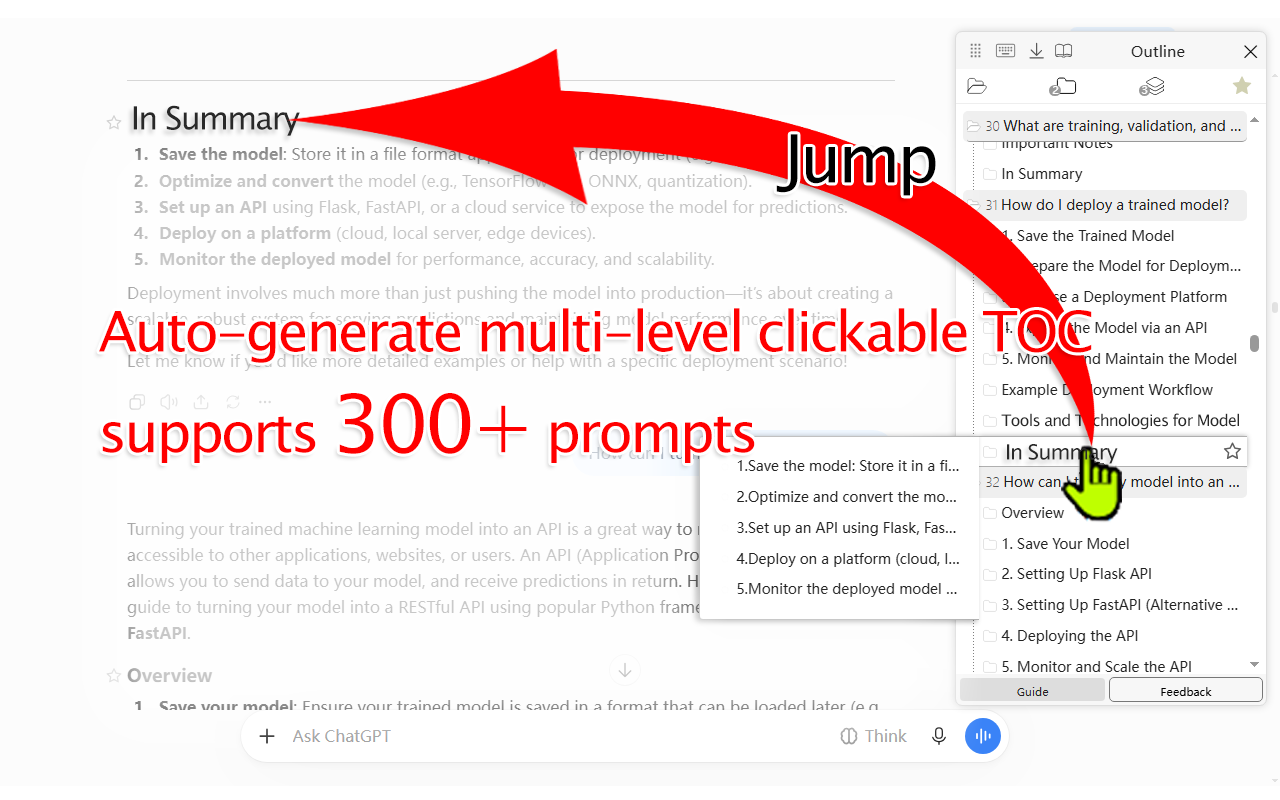
How it works
Open the outline
Install the extension and open your chat. The side panel maps every prompt and reply.
Jump instead of scroll
Click a node to jump to that message. Older messages load automatically on the way.
Pin what matters
Star and tag important answers, then filter the outline to bookmarks only.
Export when you are done
Select the turns you need and export to Markdown or PDF.
Why it works for long chats
Why long chats feel slow
Rendering hundreds of messages is heavy for the browser, and scrolling gives you no map. An outline avoids loading and scanning the whole thread just to find one answer.
Find an earlier answer fast
Look at the prompt-level nodes first, then the headings inside the relevant answer. Two clicks usually beat a full-text search.
Keep your place
Scroll normally and the outline highlights the current section, so you never lose track of where you are.
FAQ
How do I quickly find an earlier answer in a long ChatGPT chat?
Open the outline panel and click the section heading. The page jumps to that message and loads older messages if needed.
Why is my ChatGPT chat so slow to scroll?
Rendering hundreds of messages is expensive. Navigating by outline means you do not have to scroll through the whole thread.
Does this work on mobile?
It is a Chrome desktop extension. Use it on desktop Chrome where long chats are hardest to navigate.
Can I save my place for later?
Yes — bookmark the message with a tag, then return to it from the bookmarks filter.
Turn your long ChatGPT chat into a clickable outline
Try the free open-source edition, or get cloud sync, tags and more export formats in the official release.