 Long ChatGPT Conversations
Why Markdown works well here
Markdown keeps headings, lists, tables and code blocks readable in a plain text file, and almost every note app can import it.
Export only what matters
You do not need to export the whole thread. Select the turns that contain the useful answers and leave the rest behind.
Everything stays on your machine
The file is generated in your browser. Your conversation is not uploaded to a server.
How to do it
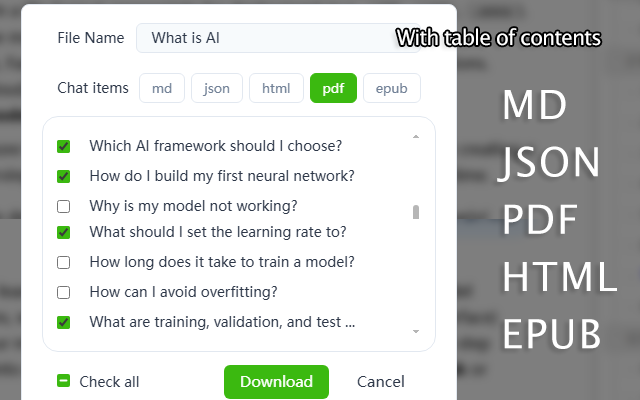
- Open the export dialog: Click the export button in the panel header.
- Select the turns: Tick the messages you want to keep.
- Choose Markdown and save: Pick Markdown, name the file, and save it locally.
FAQ
How do I export a ChatGPT conversation to Markdown?
Open the export dialog, tick the turns you want, choose Markdown, and save the file. The file is generated locally.
Are tables and code blocks preserved?
Yes, where the target format supports them. Markdown preserves headings, lists, tables and fenced code blocks.
Is my conversation uploaded during export?
No. Export runs in your browser; nothing is uploaded.